Streaming IPTV on Mac: VLC and macOS Players
Watch IPTV on a MacBook, iMac or Mac mini: open M3U playlists with VLC, choose a macOS IPTV app, use AirPlay to your TV and fix playback issues.
Quick answer
On a Mac, the simplest free option is VLC from videolan.org: choose File → Open Network and paste your M3U link. Mac App Store IPTV players add a programme guide. Use AirPlay or an HDMI adapter to watch on a TV. If macOS blocks an app, approve it under System Settings → Privacy & Security.
macOS doesn't come with an IPTV player, but there are good options — from free VLC to dedicated apps in the Mac App Store.
Option 1: VLC (free)
- Download VLC from videolan.org (choose the Apple-silicon or Intel version to match your Mac — the site usually detects it).
- Drag VLC into Applications and open it. If macOS asks, confirm you want to open it, or approve it in System Settings → Privacy & Security.
- Choose File → Open Network (⌘ + N).
- Paste your M3U link and click Open.
- Show the playlist with Window → Playlist to browse channels.
Option 2: A Mac App Store IPTV player
Search the Mac App Store for "IPTV player". Look for apps that support M3U and Xtream Codes, offer a programme guide, and have recent updates. On Apple-silicon Macs, some iPad apps are also available in the Mac App Store.
Watch on your TV
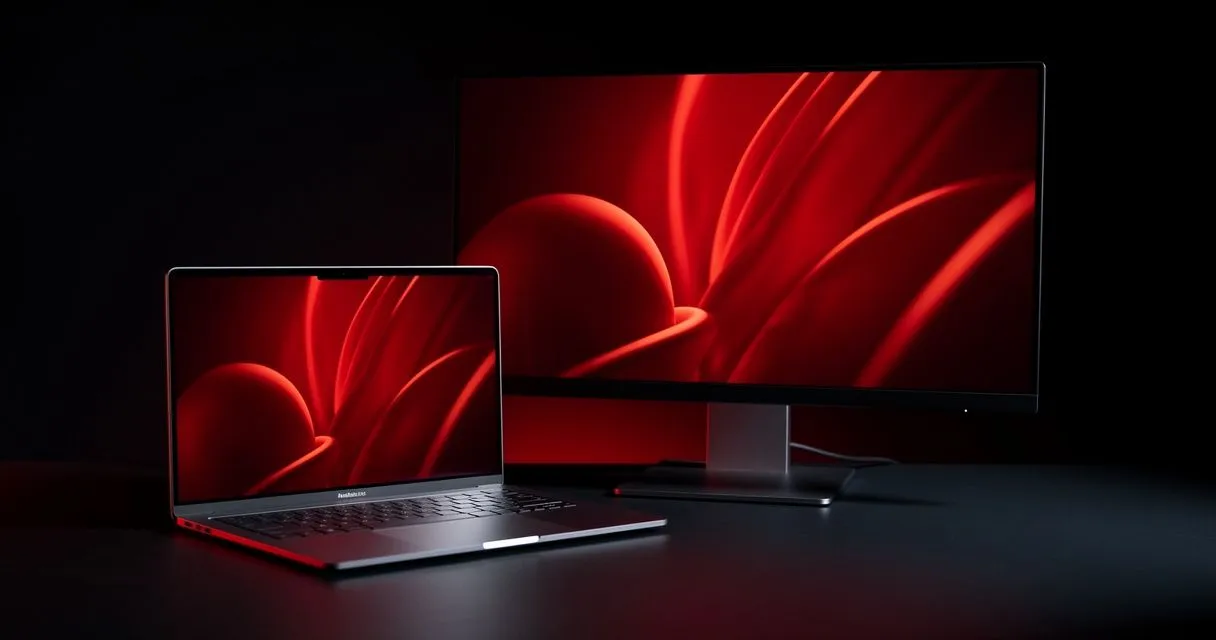
- AirPlay: click Control Center → Screen Mirroring and choose your Apple TV or AirPlay-compatible TV.
- HDMI: connect via an HDMI port or USB-C to HDMI adapter for the most stable picture.
Fix common issues
| Problem | Fix |
|---|---|
| "App can't be opened" | Approve it in System Settings → Privacy & Security |
| Choppy 4K | Close heavy apps; use Ethernet or 5 GHz Wi-Fi; check VLC's hardware decoding is enabled |
| Network permission prompt | Allow incoming/outgoing connections for the player |
| Wrong audio output | Choose the device in Control Center → Sound |
See also: Mac device page · Windows guide · internet speed requirements
- #mac
- #macos
- #vlc