Streaming Quality Problems: Blurry, Blocky or Out-of-Sync Picture Fixed
Diagnose and fix common IPTV picture problems: blurry or soft images, blocky artefacts, stutter, wrong aspect ratio and audio out of sync.
Quick answer
Most IPTV picture problems have simple causes: a soft image usually means low bandwidth, blocky patches mean brief packet loss, judder means a frame-rate mismatch, and out-of-sync audio usually comes from soundbar or decoder settings. Fixes include Ethernet or 5 GHz Wi-Fi, enabling 'match frame rate', switching the player's decoder, and setting audio output to PCM.
Buffering is the problem everyone talks about, but plenty of picture issues don't involve the spinning wheel at all. Here's how to identify and fix the most common streaming quality problems.
Picture looks soft or blurry
Likely cause: your player has switched to a lower-quality stream because of limited bandwidth (adaptive bitrate), or the channel itself is broadcast in SD/HD rather than Full HD/4K.
Fixes:
- Run a speed test on the device itself (many TVs and sticks have a browser or a speed-test app). Aim for about 10 Mbps for HD and 25 Mbps for 4K. See internet speed requirements.
- Switch to Ethernet or move closer to the router; use the 5 GHz Wi-Fi band.
- Check the channel's own quality — not every channel is available in every resolution.
- On TVs, turn off "eco" picture modes that reduce brightness and sharpness.
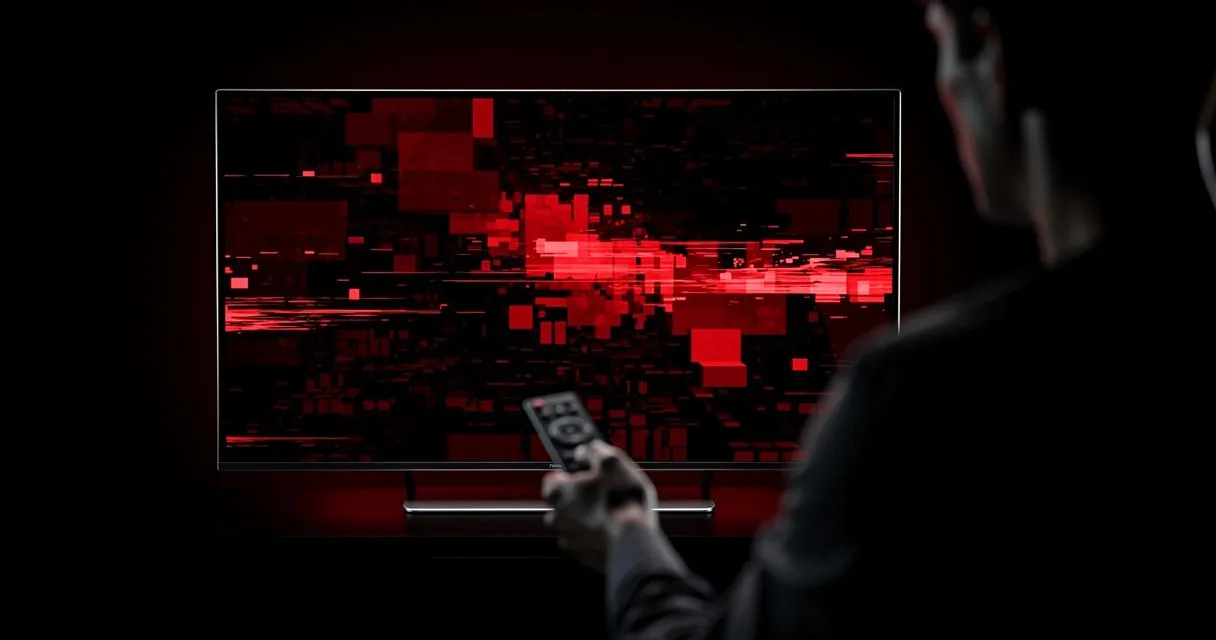
Blocky or pixelated patches
Likely cause: short bursts of packet loss or a stream at a very low bitrate during a busy moment (fast sport and confetti are notoriously hard to compress).
Fixes:
- Restart your router to clear congestion.
- Pause other heavy uses of your connection: game downloads, cloud backups, 4K streams on other TVs.
- If it only happens on one channel, try an alternative version of that channel if your list includes one.
Stutter or judder (smooth motion looks jerky)
Likely cause: a mismatch between the stream's frame rate (often 25 or 50 fps in Europe) and the TV's output rate (often 60 Hz).
Fixes:
- On Android TV and Fire TV, enable Match frame rate / Match original frame rate in display settings.
- In your player's settings, try switching the video player engine or decoder (hardware vs software).
- Turn off motion-smoothing features if movement looks artificial ("soap-opera effect").
Wrong shape: stretched or black bars
Fixes:
- Look for an aspect ratio or zoom option in the player while a channel is playing (often under Options or the menu button).
- Set your TV's picture size to "Fit to screen", "Just scan" or "Original".
Audio out of sync
Fixes:
- Switch channels and back — this resets the stream.
- If you use a soundbar or AV receiver, look for an audio delay / lip-sync setting.
- Change the player's audio output between PCM and passthrough.
- Update the player app and the TV's firmware.
No sound on some channels
Some channels use Dolby audio formats that certain devices can't decode directly. Set the device's audio output to PCM / Stereo or enable audio passthrough to a compatible soundbar.
Colours look washed out or too dark
- HDR content on a TV with HDR disabled (or vice versa) can look wrong. Check the TV's HDMI input settings ("HDMI UHD colour", "Enhanced format" or similar) for the port your streaming stick uses.
- Use the TV's "Movie" or "Filmmaker" picture mode for the most natural colours.
Why does the picture look fine on one channel but not another?
Channels are encoded independently, often at different resolutions and bitrates, so quality naturally varies between them. A news channel broadcast in HD will never look like a 4K film channel, and a busy sports scene is harder to compress than a studio interview.
If one channel looks noticeably worse than similar channels, the problem is that channel's stream rather than your setup. Try it again later, or use an alternative version if your channel list includes one.
Quick symptom-to-fix table
| What you see | Most likely cause | First thing to try |
|---|---|---|
| Soft, blurry image | Low bandwidth (adaptive bitrate) | Ethernet or 5 GHz Wi-Fi |
| Blocky squares in motion | Brief packet loss / low bitrate | Restart router, pause downloads |
| Jerky motion in sport | Frame-rate mismatch | Enable "match frame rate" |
| Stretched picture | Wrong aspect ratio | Change zoom/aspect in player |
| Lips out of sync | Soundbar or decoder delay | Adjust lip-sync / PCM output |
| Washed-out colours | HDR mismatch | Check TV's HDMI input HDR setting |
| No sound on some channels | Unsupported audio format | Set audio output to PCM/stereo |
Does a 4K TV make IPTV look better?
Only if the stream, the device and the connection can all deliver 4K. A 4K TV upscales lower-resolution channels, which can look slightly sharper, but it can't add detail that isn't in the stream. A streaming device that supports 4K and H.265 decoding, plus a stable connection of around 25 Mbps, is needed for true 4K.
Should I change my TV's picture settings for IPTV?
Yes — a few settings make a visible difference. Use a "Movie", "Cinema" or "Filmmaker" picture mode for natural colours, turn down or off motion smoothing if movement looks artificial, and switch off eco modes that dim the image in the evening. Leave sharpness low; high sharpness exaggerates compression artefacts.
How we diagnose quality complaints
When a customer tells us the picture "looks bad", we ask three questions before anything else: Is it every channel or just one? Is the device wired or on Wi-Fi? And does it happen at a particular time of day? Those answers separate stream issues from network issues from device issues in a couple of minutes. You can use the same three questions yourself before contacting support.
Does a VPN reduce picture quality?
It can. A VPN adds an extra hop between you and the server; if the VPN server is far away or busy, available bandwidth drops and adaptive streaming lowers the quality. If you use a VPN, connect to a fast server near you and compare quality with the VPN switched off.
When is a hardware upgrade the answer?
If the picture stutters on every channel even on a wired connection with a good speed test, the device is the likely bottleneck. Older sticks and TVs may lack H.265 hardware decoding or enough memory for modern player apps. A current streaming device often fixes persistent stutter — see choosing a streaming device.
Checklist before contacting support
Before you message us, note which channels are affected, whether the device is wired or on Wi-Fi, the time of day the problem appears and your latest speed-test result. With those four details, most quality issues can be narrowed down in a single reply.
Why does quality drop in the evening?
Evenings are peak time on home broadband: neighbours are streaming too, and shared parts of the network get busier. Adaptive streaming responds by lowering quality to avoid buffering. A wired connection, a router placed centrally and avoiding large downloads during prime time all help. If quality is fine in the morning but poor every evening, it's a capacity issue rather than a problem with your device. Running a speed test at 9 pm and again at 9 am is the quickest way to confirm it, and the result is useful evidence if you raise it with your broadband provider.
Still not right?
Note the channel, the time and what you see, then contact support — specific details help us find the cause quickly. For buffering and freezing, read how to fix streaming buffering.
- #troubleshooting
- #picture-quality
- #settings